Got a QR Code in an Email? Check It Before You Scan
Check an unexpected QR code in an email before scanning, verify the request through the official site, and respond safely if you entered your credentials.
A QR code in an email is a link you cannot read. You cannot inspect its destination by hovering over the image; a phone may preview the URL after scanning, before you choose whether to open it. That makes it worth a few seconds of checking first.
The short version: if the message is unexpected, asks you to sign in, or pushes you to act fast, do not scan. Open the company's own app or type its website address yourself, and check whether the request exists there.
What a QR code can conceal
A QR code is only a picture of a URL. In a phishing email it does two jobs at once. It hides the destination from you, and it hides it from mail filters that scan text links but not images.
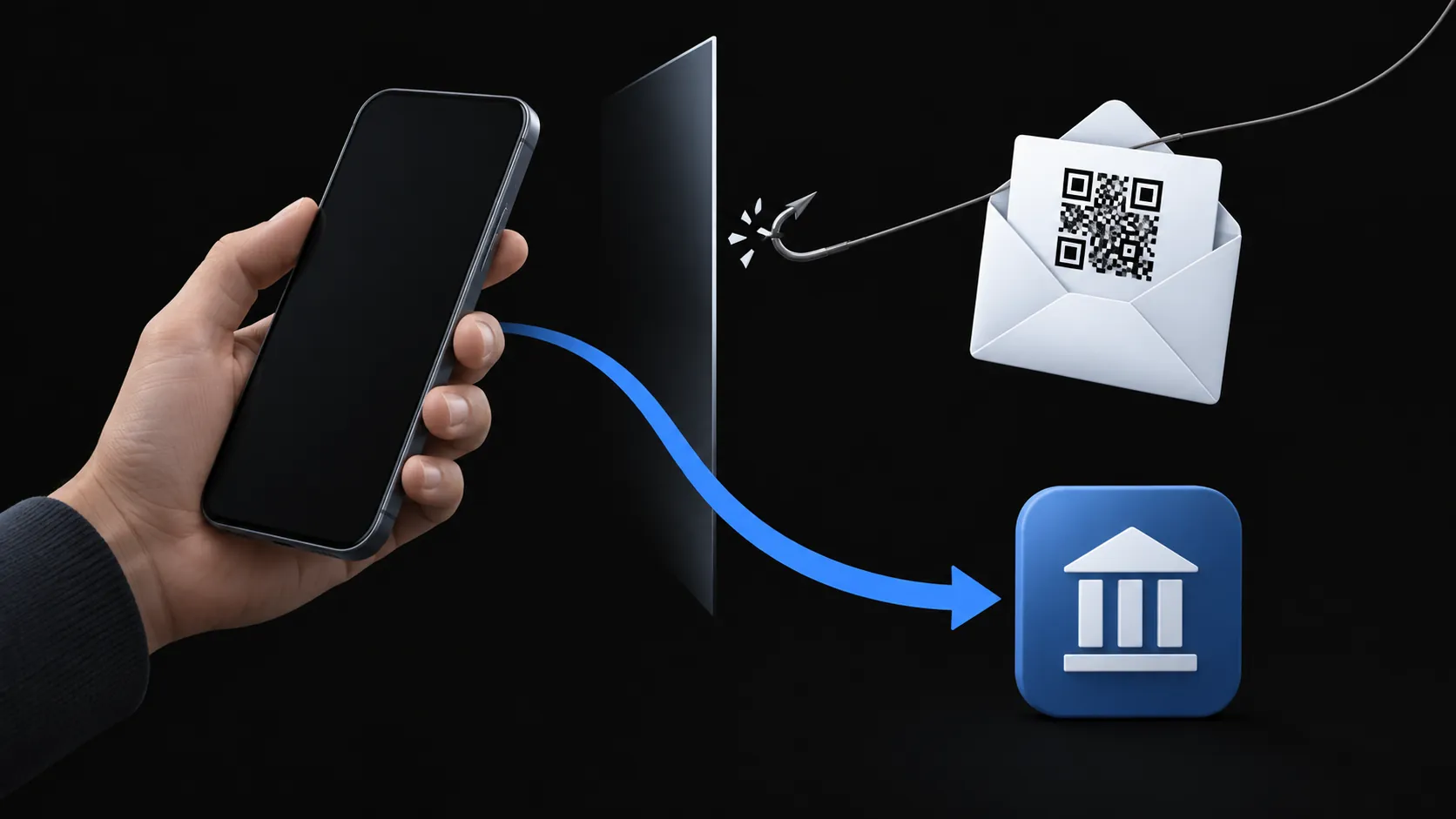
It also moves you to a different device. The UK National Cyber Security Centre's assessment of QR code risk makes both points: security tools may not scan the image, and scanning pushes you onto a personal phone that sits outside workplace protections. You leave a filtered work inbox and land on an unfiltered mobile browser, which is exactly where the attacker wants the fake sign-in page to load.
The page behind the code usually asks for a password or a sign-in approval. If you do scan and your phone previews the link, an unfamiliar or lookalike domain is one more chance to stop — but the real decision happens earlier, on the email itself.
Six checks before scanning
The scale of this tactic is documented. Microsoft Threat Intelligence tracked QR-code phishing within its Defender telemetry rising from about 7.6 million threats in January 2026 to roughly 18.7 million in March, a 146% increase (Q1 report). After a takedown of the Tycoon2FA phishing platform, its Q2 tracking showed three consecutive monthly declines, down to 8.3 million in June (Q2 report). Both figures describe Microsoft's own telemetry and reporting periods, not all phishing worldwide, and a falling trend does not mean the tactic is gone.
Two details from that Q2 report shape the checks below. QR phishing arrived almost entirely inside attachments — PDFs were 58% of delivery in June, Word documents 40%, with codes embedded directly in the message body near zero — and credential theft accounted for the overwhelming share of malicious payloads.
So before you scan:
- Were you expecting this? A QR code you never asked for, from a sender you do not know, is enough reason to stop.
- Does it pressure you? "Your session expired," "verify immediately," "final notice." Urgency is the tell.
- Is it in an attachment? A QR code inside a PDF or Word document is the dominant delivery method Microsoft observed. An attachment makes the message more suspicious, not less.
- Does it want credentials? If the request is a sign-in, a payment, or a verification, assume it is a credential harvest until proven otherwise.
- Is the claimed channel real? If a delivery company "could not reach you," does that delivery exist in its app? If your bank "needs verification," does its app show a warning?
- Are you reaching for a scanner app? Use the phone's built-in camera. The FTC's guidance on QR scams specifically warns against installing a separate QR app for an unexpected code — that download is part of the trap.
A code that survives all six can still be hostile; these checks filter, they do not guarantee.
Verify the request outside the email
Whatever the message claims, confirm it through a channel the email did not provide. Open the company's known official app or type its website address yourself, or contact the organization through a number you found independently. If you cannot verify the request there, do not act on the email.
If you scanned or entered credentials
Work through the damage in order:
- Password entered: change it now, on the real site, typed in yourself. If you reused that password anywhere, change it there too.
- Sessions and devices: sign out other sessions from the account's security settings, then check recent sign-in activity for anything you do not recognize.
- Bank or card details given: call the number on the back of the card or on a statement, not a number from the email.
- Phone number or personal details submitted: expect follow-up phishing that references this exact message — that personalization is the attack continuing.
- Something downloaded: do not open or run it. Use your device's security tools, and if you already ran it, seek help; a clean scan alone is not proof of safety.
Why a temporary inbox does not vouch for a message
Receiving a phishing email in a temporary inbox does not make it safer. TempMail.Best rejects only mail that Cloudflare's experimental spam score marks at its explicit maximum — a single unreliable signal, not a filter you can rely on. Nothing scans a QR code image, checks where it points, or verifies the sender's story.
An isolated address is still useful for what it does: a disposable signup keeps junk like this out of your main inbox, and the mailbox itself is gone after 10 minutes or 1 hour. But the decision to scan is always yours. The broader boundaries of what a temporary inbox does and does not cover are in the temporary email safety checklist. If the email itself is a verification code or login link for a disposable account, receiving codes in a temporary inbox covers the failure cases.
One more boundary for people who hand mail to software: if an AI assistant reads your email, a malicious message is input it may act on. That is a separate problem with its own checks, covered in email prompt injection.